Basic Models
The most basic way to visualize data from a model is to use the Repeater element. It is used to instantiate an array of items and is easy to combine with a positioner to populate a part of the user interface. A repeater uses a model, which can be anything from the number of items to instantiate, to a full-blown model gathering data from the Internet.
Using a number
In its simplest form, the repeater can be used to instantiate a specified number of items. Each item will have access to an attached property, the variable index, that can be used to tell the items apart.
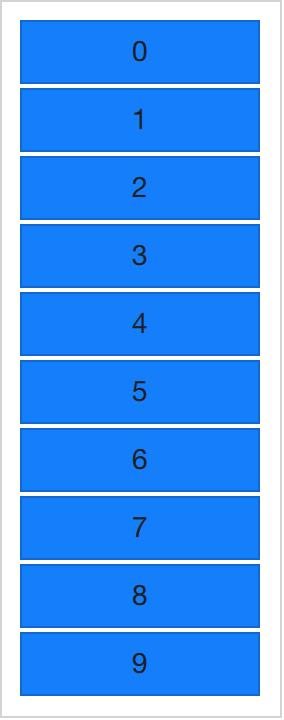
In the example below, a repeater is used to create 10 instances of an item. The number of items is controlled using the model property and their visual representation is controlled using the delegate property. For each item in the model, a delegate is instantiated (here, the delegate is a BlueBox, which is a customized Rectangle containing a Text element). As you can tell, the text property is set to the index value, thus the items are numbered from zero to nine.
import QtQuick
import "../common"

Column {
    spacing: 2

    Repeater {
        model: 10
        delegate: BlueBox {
            required property int index
            width: 100
            height: 32
            text: index
        }
    }
}
Using an array
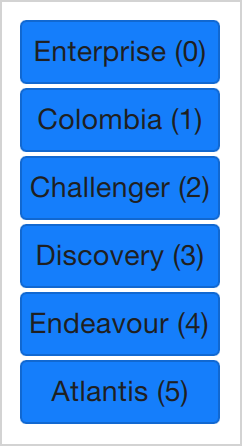
As nice as lists of numbered items are, it is sometimes interesting to display a more complex data set. By replacing the integer model value with a JavaScript array, we can achieve that. The contents of the array can be of any type, be it strings, integers or objects. In the example below, a list of strings is used. We can still access and use the index variable, but we also have access to modelData containing the data for each element in the array.
import QtQuick
import "../common"

Column {
    spacing: 2

    Repeater {
        model: ["Enterprise", "Columbia", "Challenger", "Discovery", "Endeavour", "Atlantis"]

        delegate: BlueBox {
            required property var modelData
            required property int index

            width: 100
            height: 32
            radius: 3

            text: modelData + ' (' + index + ')'
        }
    }
}
Using a ListModel
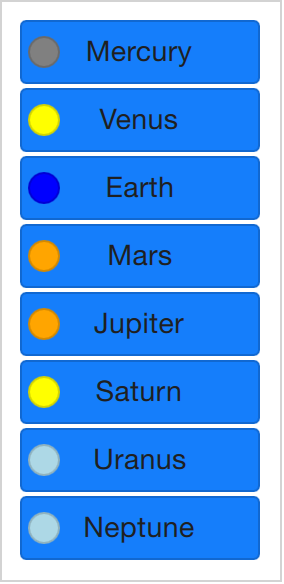
Being able to expose the data of an array, you soon find yourself in a position where you need multiple pieces of data per item in the array. This is where models enter the picture. One of the most trivial models and one of the most commonly used is the ListModel. A list model is simply a collection of ListElement items. Inside each list element, a number of properties can be bound to values. For instance, in the example below, a name and a color are provided for each element.
The properties bound inside each element are attached to each instantiated item by the repeater. This means that the variables name and surfaceColor are available from within the scope of each Rectangle and Text item created by the repeater. This not only makes it easy to access the data, it also makes it easy to read the source code. The surfaceColor is the color of the circle to the left of the name, not something obscure as data from column i of row j.
import QtQuick
import "../common"

Column {
    spacing: 2

    Repeater {
        model: ListModel {
            ListElement { name: "Mercury"; surfaceColor: "gray" }
            ListElement { name: "Venus"; surfaceColor: "yellow" }
            ListElement { name: "Earth"; surfaceColor: "blue" }
            ListElement { name: "Mars"; surfaceColor: "orange" }
            ListElement { name: "Jupiter"; surfaceColor: "orange" }
            ListElement { name: "Saturn"; surfaceColor: "yellow" }
            ListElement { name: "Uranus"; surfaceColor: "lightBlue" }
            ListElement { name: "Neptune"; surfaceColor: "lightBlue" }
        }

        delegate: BlueBox {
            id: blueBox

            required property string name
            required property color surfaceColor

            width: 120
            height: 32

            radius: 3
            text: name

            Box {
                anchors.left: parent.left
                anchors.verticalCenter: parent.verticalCenter
                anchors.leftMargin: 4

                width: 16
                height: 16

                radius: 8

                color: blueBox.surfaceColor
            }
        }
    }
}
Using a delegate as default property
The delegate property of the Repeater is its default property. This means that it's also possible to write the code of Example 01 as follows:
import QtQuick
import "../common"

Column {
    spacing: 2

    Repeater {
        model: 10

        BlueBox {
            required property int index
            width: 100
            height: 32
            text: index
        }
    }
}